

The medical imaging solutions you need from the people you trust.
CELEBRATING 40 YEARS SERVING HEALTHCARE FACILITIES NATIONWIDE
Our commitment to excellence and innovation has made us a trusted partner for healthcare facilities nationwide for over four decades. We deliver personalized service with expert guidance, ensuring superior service for every customer.
Click HereExplore our Medical Imaging Solutions
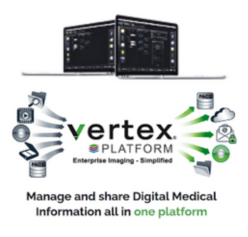
All-in-one application for importing, DICOM conversion, disc burning, scanning, and sharing medical images.
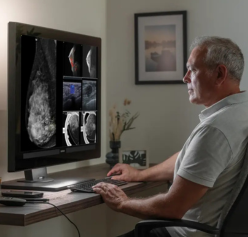
BARCO, LG, EIZO, DBI, JVC
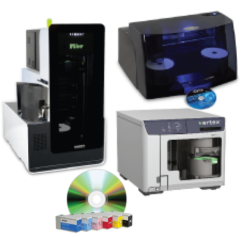
Rimage, Epson, Custom CDs, Ink, Ribbons, Specialty Media, Packaging
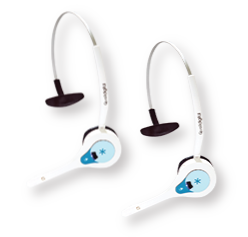
Quail Digital Headsets deliver hands-free, crystal-clear communication for cath, EP, and OR teams.
Import, DICOMize, Burn, Scan, Share Digital patient images and information with one platform
BARCO, LG, EIZO, DBI, JVC
Rimage, Epson, Custom CDs, Ink, Ribbons, Specialty Media, Packaging
Quail Digital Headset System: Enhanced team communication Cath, EP, IR, and OR

Ergonomic desks and chairs designed for productivity and comfort in diagnostic imaging.
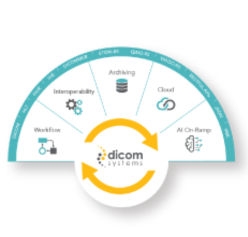
Connect PACS, RIS, and EHR systems seamlessly with intelligent, AI-powered workflow routing.
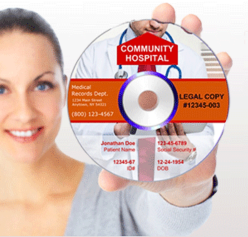
Automate Release of Information and Audit Requests on an encrypted disc.

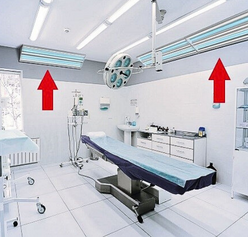
Advanced Ferromagnetic Detection aligned to ACR, Joint Commission, FGI, and VA safety standards.
DICOM Systems: De-Identification, HL7 Routing, DICOM Worklist, Pre-Fetching
DISCO™ Medical: Automate Release of Information and Audit Requests on an encrypted disc
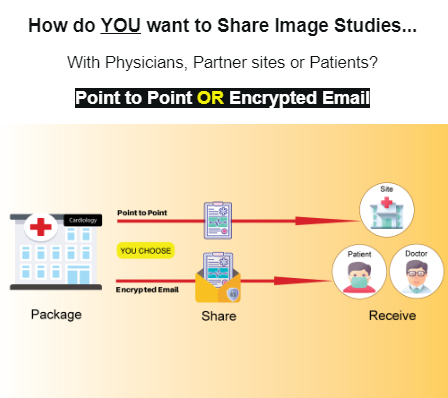
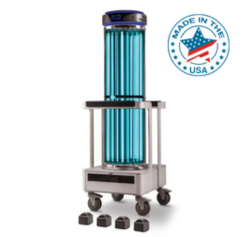
Steriliz Rapid UVC Mobile System
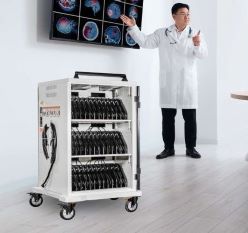
Power Technologies: UVC Disinfection, Charge, & Secure Vital Assets
Steriliz Rapid UVC Mobile System
Power Technologies: UVC Disinfection, Charge, & Secure Vital Assets

Nancy Fisher
President, Data Distributing LLC
Your job is hard enough. Choosing and using IT solutions can be daunting.
Our job is to help you find the right vendor-neutral solution, at the right price…..and then make sure it performs.
Our Mission is that every part of your whole pre and post-sale experience be positive. You deserve personalized care: a supplier that knows you when you call in and tech support that doesn’t stop until you’re satisfied.
Data Distributing’s culture is centered on Trust, Expertise, and Relationships.
We thank you, our Customers, for trusting us all these years.

3028 Healthcare Customers

2868 Installations

40 Years
Meet our Sales Team

Nick Fisher
VP Strategic Sales
949-528-1210

Jennifer King
Account Executive
831-466-1411

Annetta Rathe
Account Executive
831-466-1423

Lila Scherer
Account Executive
831-466-1425

Robert Medina
Account Executive
800-635-6779
Customer Testimonials
Questions or Suggestions?
We're here to help!
Easily find the right contact to answer your questions ranging from pre- and post-sales to customer relations, technical support, media relations and more.
Request a Quote
Interested in the products on our site?
Learn from an experienced consultant.

Sales Support
8:00am – 4:00pm Pacific Time weekdays
Call Us: 800.635.6779
Fax: (831) 425-1186
